![CoudDepot_LOGO_RGB.png]](https://kb.clouddepot.com/hs-fs/hubfs/CoudDepot_LOGO_RGB.png?height=40&name=CoudDepot_LOGO_RGB.png)
⚠️ BETA RELEASE NOTICE: This feature is currently in Beta. Variables and configuration steps are subject to change based on platform updates.
Prerequisites
Before starting, ensure you have:
-
Your unique Cloud Depot Payment Portal URL and Token (Provided by our support team).
Configuration Steps
1. Access Portal Settings Log into HaloPSA and navigate to:
Configuration > Self-Service Portal > General Settings
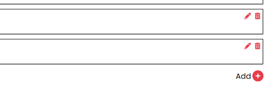
2. Add a Menu Button Scroll down to the Menu Buttons heading and click Add.
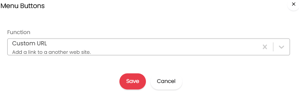
3. Configure the Button Function
-
Button Text: e.g., "Manage Payments" or "Pay Online Now"
-
Function: Select Custom URL from the dropdown list.
-
Icon: Choose a relevant icon (like a credit card or dollar sign).
-
Dashboard button restrictions: Show only when logged in
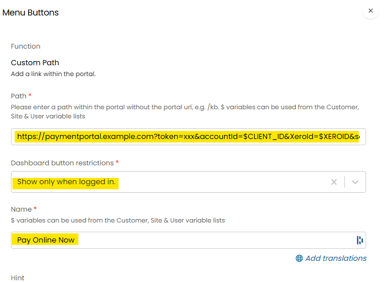
4. Map the Path URL (Dynamic Variables) Enter your portal URL into the Path field. You must use Halo’s dynamic variables so the portal knows which customer is clicking the button.
URL Format: https://[YOURPORTAL]?token=[YOURTOKEN]&accountId=$CLIENT_ID&XeroId=$XEROID&source=haloportal
Note on Variables:
YOURPORTAL: Your subdomain setup with RPS eg payments.example.comYOURTOKEN: You can get this from inside in the RPS Portal
5. Save and Test Save the button and log into your Halo Customer Portal as a test user to verify the link generates correctly and redirects to your branded Cloud Depot portal.