![CoudDepot_LOGO_RGB.png]](https://kb.clouddepot.com/hs-fs/hubfs/CoudDepot_LOGO_RGB.png?height=40&name=CoudDepot_LOGO_RGB.png)
Recurring Payments > Configuration > Configure Automations
Tip: See our Automations overview page for more information on how Automations work.
Background
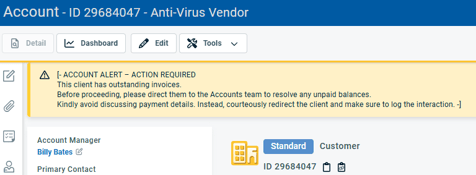
The Autotask Overdue Invoices module in RPS uses customers’ overdue invoice(s) data, along with sync information from the Autotask to Xero integration, to update either the classification field or the Company/Ticket alert field in Autotask. This helps technical staff quickly identify when a customer account is overdue and can help prevent additional tickets from being created, reducing the risk of the customer falling further into arrears.
Note: The overdue trigger is based on the total value of all invoices that are overdue and meet or exceed the overdue period. For example, if a customer has two invoices for $50.00 each, both are 8 days overdue and the overdue period is set to 7 days, the overdue amount will be $100.00.
To Setup
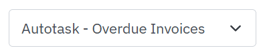
From the dropdown menu, select Autotask: Overdue Invoices
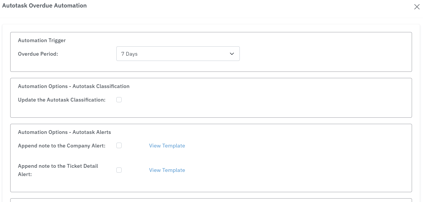
| Automation Trigger | Overdue period: the number of days an invoice must be overdue before it is included in the automation. |
| Autotask Classification | Selecting this option updates the company classification in Autotask. Warning: If the classification field is needed for another automation or purpose outside of RPS, do note enable this option. |
| Append note to the Company Alert | This option appends a note to the company alert. If a note already exists, the new note is added to it. If no note exists, a new one is created. |
| Append note to the Ticket Detail | This option appends a note to the ticket alert. If a note already exists, the new note is added to it. If no note exists, a new one is created. |
| Automatically Revert | When the condition no longer exists, for example, when the overdue company is no longer overdue, the automation can be configured to automatically return the selected fields, such as classifications and alerts, to their original state. |
| Send Summary Report | A summary report can be sent when an action has been applied to a company. |
| Minimum Due | You can set the minimum amount a customer must owe before the automation is triggered. For example, if the minimum due is set to 50 and the customer owes 25, the automation will not run for that customer. |
| Maximum Due | You can set a maximum amount that a customer can owe before the automation will no longer run. For example, if the maximum due is set to $20,000 and the customer owes $80,000, the automation will not run for that customer. Note: A value of 0 means there is no upper limit. |