![CoudDepot_LOGO_RGB.png]](https://kb.clouddepot.com/hs-fs/hubfs/CoudDepot_LOGO_RGB.png?height=40&name=CoudDepot_LOGO_RGB.png)
Prerequisites
Before you begin, ensure that:
- Cloud Depot RPS (Recurring Payment Service) is fully configured.
- You have administrative access to your HaloPSA instance.
Step 1: Copy Your HaloPSA Email Code Snippet
Cloud Depot provides specialized code specifically optimized to look good across all major email clients (like Outlook and Gmail).
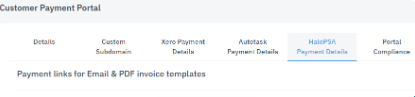
- Log into Cloud Depot and navigate to Recurring Payments > Configuration > Customer Portal.
- Click on the HaloPSA Payment Details tab.
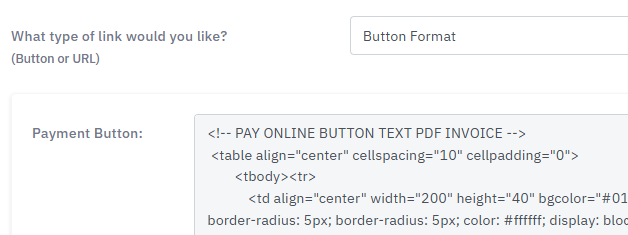
- Choose either the Hyperlink HTML or the Button HTML code option.
- Copy the entire raw code block and save it to a notepad for later use.
Step 2: Access Email Templates in HaloPSA
- Log into HaloPSA with administrator privileges.
- Navigate to Configuration > Email > Email Templates.
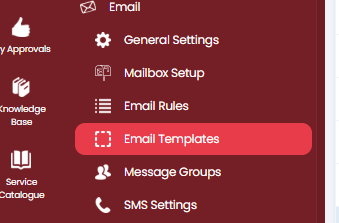
- Locate the template used for sending or notifying customers about invoices (e.g., Invoice Notification or Invoice Email Subject) and click Edit.

Step 3: Insert the Payment Link Code
Using a quick temporary text placeholder makes finding your spot in the template code much cleaner.
- Before you begin, create a backup copy of your HTML code (see Step 4 below for how to access the source code view).
- In the text editor window, find where you want the payment button to appear (for example, directly below the text stating the invoice balance).
- Type a temporary placeholder sequence like
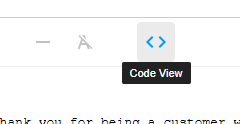
!!!!!!!(seven exclamation marks). - Switch the HaloPSA editor to HTML / Source Code View (click the
</>or Source button).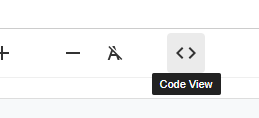
- Use
Ctrl + F(orCmd + Fon a Mac) to search for your!!!!!!!placeholder. - Highlight the entire p tag, and paste your copied Cloud Depot HTML code block directly over them.

- Toggle back to the standard Design View by clicking code view button again to inspect the layout.
Step 5: Test and Save
- Click Save to update your email template.
- We highly recommend triggering a test invoice transaction to a dummy account to send a live test email.
- Open the test email in both desktop and mobile layouts to ensure the button centers cleanly and links safely to your Cloud Depot portal.